Software updates
How to Use the New Security Feature in Your Account
Sep
The new Security feature, found under the My Account section, is designed as a central hub where users can effectively manage and enhance the security of their account. As the name implies, this comprehensive feature allows you to control notifications, monitor sessions, and manage trusted devices, helping you stay in control of your account’s safety at all.
Overview of Key Functionalities
1. Setup a Dedicated Email for Security Notifications
To help you better manage security alerts, the Security feature lets you specify an alternative email address that will be used exclusively to receive security notifications.
-
If you provide this separate email, all important security alerts, such as suspicious login attempts or changes to your account, will be sent there.
-
If you don’t set a dedicated security email, notifications will default to your main account email.
-
This segregation ensures that critical security messages are not lost among other emails, allowing you to respond quickly to potential threats.
2. Manage Your Active Sessions
Understanding where your account is accessed from is critical. The active sessions management panel gives you full visibility over your account’s current and recent logins across multiple devices and platforms.
-
You will see detailed information per session, including browser version, the country from which the device is connected, the IP address, and the time of the last activity.
-
This transparency allows you to quickly recognize any unfamiliar or unexpected sessions, which may indicate unauthorized access.
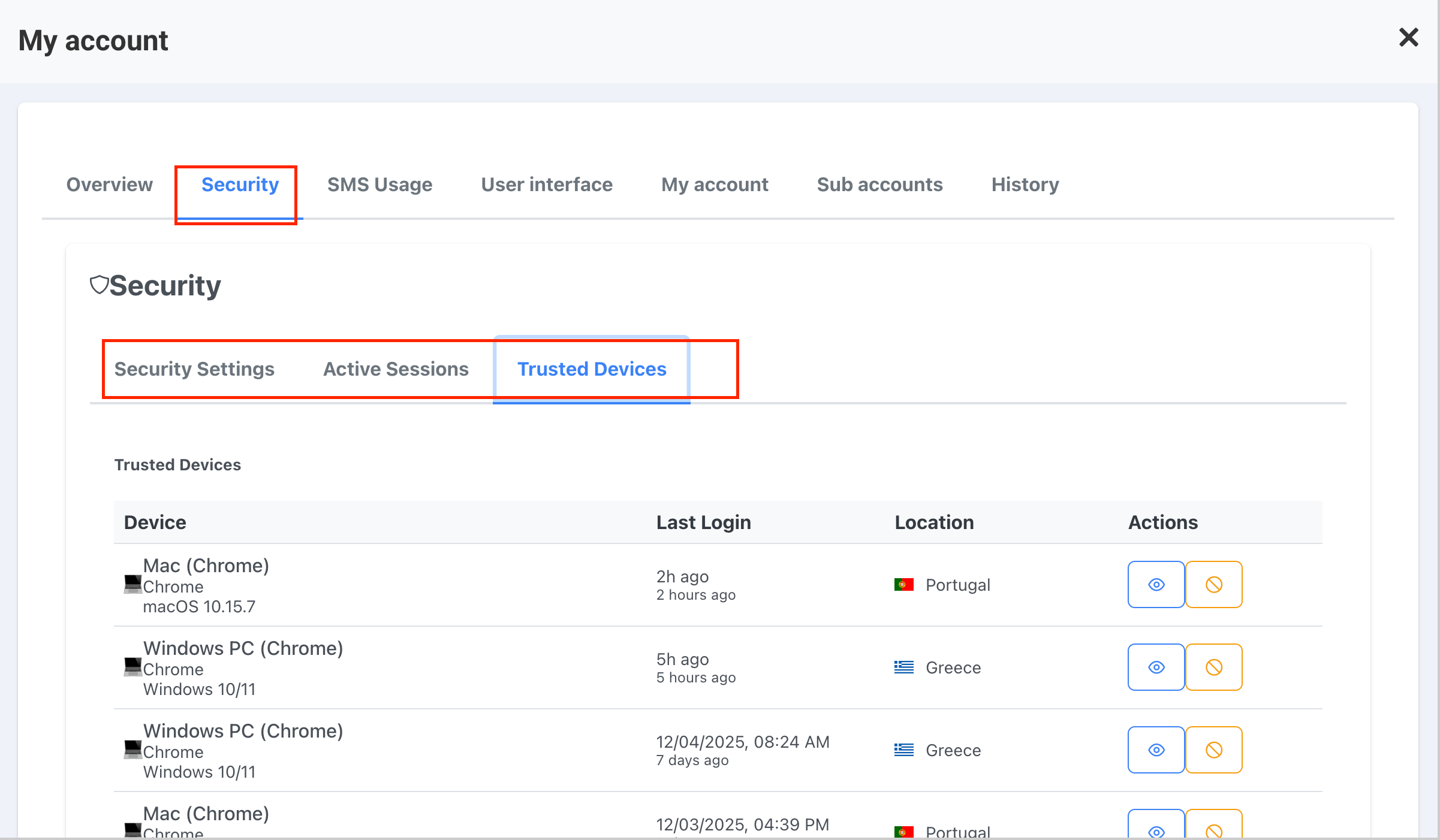
3. Trusted Devices Monitoring and Access Control
One of the most powerful parts of the Security hub is the ability to check and control your trusted devices.
-
When you log in from a new device or workstation, it is automatically added to your list of trusted devices.
-
You will receive an immediate email notification informing you of this addition, so you are always aware of new devices accessing your account.
-
If you notice a device or session you don’t recognize or no longer trust, you have the power to block access immediately. This helps prevent potential attackers from maintaining access to your account.
Step-by-Step: How to Use the Security Feature
-
Access the Security Feature
Log in to your account and navigate to My Account → Security. This will bring up the Security dashboard. -
Setup Security Notifications Email
Locate the field to add a dedicated security notification email address. Enter the alternate email if desired and save the changes.
If left blank, your main account email will be used for security alerts. -
Review Active Sessions
Scroll to the section showing active sessions. Review device details such as browser, geographic location, and last activity time.
Identify any sessions you do not recognize. -
Manage Trusted Devices
Check the list of trusted devices currently authorized to access your account.
If you identify any unknown or suspicious device, select the option to block or remove that device from trusted status.
Remember, any new device logging in will automatically be added here with a notification sent to your email.
Why Use This Feature?
The Security feature offers a centralized area for critical account security management, turning what was once a fragmented process into a streamlined one. It increases your awareness and control over how your account is accessed and notified of security incidents in real time. By separating security notifications to a dedicated email, you reduce the risk of missing important alerts. Managing sessions and trusted devices empowers you to act fast if you detect unauthorized use.
Practical Tips
-
Regularly check your active sessions and trusted devices to spot unusual activity early.
-
Always keep your security notification email updated and monitored.
-
If you receive an email about a new trusted device you don’t recognize, immediately review sessions and remove any unauthorized devices.
-
Combine this feature with strong passwords and two-factor authentication for maximum security.
This new Security feature under My Account is designed to give users peace of mind by providing comprehensive account activity insights and control mechanisms in one easy-to-access dashboard.
